How to Use the Template Selection Wizard
|
| Typically, as part of developing our messages, we use a system based on templates. Templates are organizing frameworks for putting our messages together. |
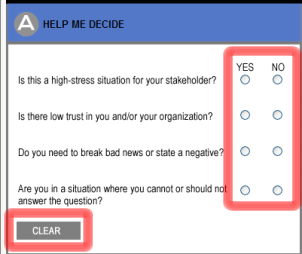
- If you need help selecting a template to use, answer the questions in section A by choosing the corresponding radio button for the responses “Yes” and “No.” All of the questions must be answered in order to receive results. To clear all of your answers, select the CLEAR button. Your responses will be cleared, and you can answer the questions again.
|
 |
 |
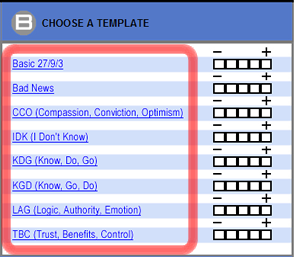
- Based on your answers to the questions, each template will be rated regarding how appropriate it is for your use. The ratings will appear as green fill color in the segments of the scale to the right of each template name in section B.
- The rating is based on a scale ranging from “-“ to “+.” A “-“ rating is the lowest, and a “+” rating is the highest. The more green segments, the more appropriate the template is for your use. If no green segments appear for a particular template, that means that the template is not appropriate for your use.
|
Based on the ratings given to the templates, choose the one you want to use by clicking on the name of the template in section B. |
- If you know what template you want to use, click on the name of the template in section B. The template will then open for your use.
|
 |
- If you want to start with a blank template with a specific number of key messages, choose the corresponding radio button for the blank templates with 3, 4, or 7 key messages. Then, select the CONTINUE button to open the chosen template for your use.
|
 |
How to Use the Message Mapping Templates
|
The message mapping templates are presented in Microsoft Word™ format. The area for the entry of your information in the template is in the table at the top of the document. Message map help, rules, and guidelines are located below the template.
|
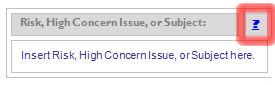
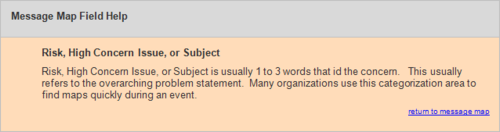
- There is a “?” link in the upper-right hand corner of each area of the template. Click on these links to see guidance for completing the information in each particular area of the template.
|
|
- There is a “?” link in the upper-right hand corner of each area of the template. Click on these links to see guidance for completing the information in each particular area of the template.
|
- When the template is opened, a custom toolbar will be available for your use.
|
- In Word 2003™, this will appear as a floating toolbar (right).
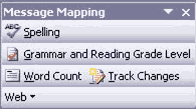
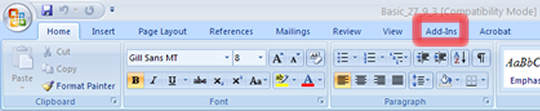
- In Word 2007™, this will be accessible using the Add-Ins tab (below).
|
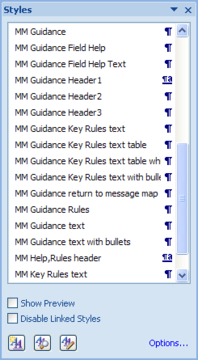
- The templates include dedicated styles, which are specially created sets of formatting properties that can be used to apply several attributes at once. These styles will help you apply consistent formatting, such as font size and color, to the text you enter into the fields in a template.
- The most robust area for working with styles is the Styles and Formatting task pane. The list of styles you see in the menu can be applied to the text in your template.
|
 |
|
